Advance Help Center Advance Help Center
  • Getting Started
    • User Onboarding Quick Steps
  • Reviews
    • Reviews Overview
    • Reviews List View
    • Reviews Automation
    • Reviews to Write- Bookings List View
    • Reviews Dashboard
    • AI Review Insights Overview
  • Integrations
    • Zapier Integration
      • How to create Zap using AdvanceCM Autopilot feature?
      • AdvanceCM Integration with Zapier
    • Connecting ChargeAutomation to AdvanceCM
    • Connecting Check-in Scan to AdvanceCM
    • Connecting Chekin to AdvanceCM
    • Connecting Touch Stay to AdvanceCM
    • Connecting KeyNinja to AdvanceCM
    • Connecting E-Visitor to AdvanceCM
    • Connecting Operto to AdvanceCM
    • Connecting Lula.Cleaning to AdvanceCM
    • Connecting Jervis Systems to AdvanceCM
    • Connecting Cleanster.com to AdvanceCM
    • Connecting MovingLake to AdvanceCM
    • Connecting Opiniion to AdvanceCM
    • Connecting Doinn to AdvanceCM
    • Connecting PriceLabs to AdvanceCM
    • Connecting Truvi to AdvanceCM
    • Connecting Turbosuite to AdvanceCM
    • Connecting Paraspot to AdvanceCM
    • Connecting Slack to AdvanceCM
    • Connecting Aipex to AdvanceCM
    • Integrations Overview
    • Connecting InsuraGuest to AdvanceCM
    • Connecting Minut to AdvanceCM
    • Connecting Duve to AdvanceCM
    • How do I connect to MailChimp?
    • Connecting Dropbox to AdvanceCM
    • Connecting Yada to AdvanceCM
    • Connecting Operto Teams to AdvanceCM
    • Connecting Wheelhouse to AdvanceCM
    • Connecting Boostly to AdvanceCM
    • How does the Mailchimp integration work?
    • Connecting Turno to AdvanceCM
    • Connecting Alertify to AdvanceCM
    • Connecting GuestFlow to AdvanceCM
    • Connecting StayFi to AdvanceCM
    • Connecting Safely to AdvanceCM
    • Connecting HKeeper to AdvanceCM
    • Connecting Beyond to AdvanceCM
    • Quickbooks integration with AdvanceCM
    • BetterSTR Integration with AdvanceCM
    • Get Clearing integration with AdvanceCM
    • Trustd Integration with AdvanceCM
  • User Settings & Logins
    • Account Info Preferences
    • User Type and Permissions Overview
    • User Settings Overview
    • Multi-Factor Authentication (MFA) Overview
    • Account Info Overview
    • Reset Password
    • Adding Payment Gateways using MFA
  • Rental Settings
    • Multi Unit rental relationship
      • What is difference between Main Unit Rental and Sub Unit Rental?
      • Major Differences between Multi-Unit Rental and Parent Child Rental Relationship
      • How does the Multi-Unit feature works?
    • How does the Parent Child Rental feature works?
    • How Do I Add and Update Rentals?
    • Rentals Overview
    • How Do I Create a Custom AdvanceCM Email Address?
    • Linking Rentals Together
    • How Do I Add Fees to my Rental?
    • How do I delete rentals?
    • How Do I Change My Rental Currency?
  • Calendars
    • Import External Calendar
    • Standard Calendar
    • Multi Calendar Overview
    • Hold Events Overview
    • Planning Calendar
    • Agenda Calendar
  • Inquiries and Bookings
    • How to Send Quotes
    • How Do I Delete an Inquiry
    • Messages Feed
    • Inquiry Inbox Overview
    • Inquiry Overview
    • Guests Overview
  • Widgets
    • Add the Interstitial Widget to a Site
    • Inquiry Widget Advanced Configuration
    • Search Widget Advanced Configuration
    • Add the Search Widget to a Site
    • Add the Calendar Widget to a site
    • Add the Booking Widget to a Site
    • Booking Widget Advanced Configuration
    • Add the Inquiry Widget to a site
  • Subscription & Billing
    • Billing Info Overview
  • Websites
    • Guest Portal Overview
    • Custom Domains With AdvanceCM Websites
    • Booking Engines
    • Custom Domains With AdvanceCM Guest Portal
    • Creating a website with Website Builder
    • Securing your Custom Domains
    • Website Analytics and Tracking
  • Operations
    • Tasks
      • My Tasks Overview
      • Tasks List View Overview
      • Tasks Calendar
    • Vendor Web Application
    • Vendor List View
    • Inventories Overview
    • Incidents Overview
  • FAQs
    • Multi-Unit Rentals Relationship FAQs
    • Parent- Child Rentals Relationship FAQs
    • Reviews FAQs
    • Advance Intelligence FAQs
    • General FAQs
    • Channels FAQs
    • Smart Devices FAQs
    • MFA FAQs
    • Automations/Autopilots FAQs
    • Messaging Apps FAQs
  • Autopilots
    • Tasks Autopilot Wizard Overview
    • Guest Autopilot Wizard Overview
    • Extras Autopilot Wizard Overview
    • Reviews Autopilot Wizard Overview
    • Rates Autopilot Wizard Overview
    • Messages Autopilot Wizard Overview
    • Inventories Autopilot Wizard
    • Expenses Autopilot Wizard Overview
    • Locks Autopilot Wizard Overview
    • Charges Autopilot Wizard Overview
    • Invoices Autopilot Wizard Overview
    • Autopilot Wizard Overview
    • Bookings Autopilot Wizard Overview
    • Documents Autopilot Wizard Overview
    • Credit Card Autopilot Wizard Overview
    • Incidents Autopilot Wizard Overview
  • Rate Management
    • My Rates are Too High on Booking.com
    • What is a Rate Category?
    • My Rates are Too Low on Booking.com
    • Pushing Rates to API Channels
    • How to Set Up Distinct Rates for Channels
    • How to Set Day-Specific Pricing
    • Changing the Max Guests value on Booking.com
    • What is a Dynamic Rate?
    • Changing the additional guest fee on Booking.com
    • What is a Standard Rate?
    • Rates Overview
    • Rate Determination Algorithm
    • Troubleshooting Rates
    • What is a Base Rate?
  • Settings
    • Payment Gateways
      • Booking.com and Expedia payment details
      • How to connect with Stripe Payment gateway?
      • How to connect with Peach Payment gateway
      • How to connect with Paypal Advance?
    • Data Feeds
    • Payments Overview
    • Data Feeds Overview
    • Payment Rules Overview
    • File Cabinets Overview
    • Email Options
    • Branding Info Overview
    • Shared Content Overview
    • Stealth Overview
    • AdvanceCM Data Dictionary
    • Custom Codes Overview
    • Templates Overview
    • Web onboarding Flow for AdvanceCM users
  • Smart Devices
    • Smart Devices Setup
    • Smart Devices General Settings
    • Smart Devices Overview
  • Channel Manager
    • iCal Connections
      • Connecting iCal Channels
      • Export your AdvanceCM calendar to Holidaylettings
      • Connecting to Flipkey/Tripadvisor with AdvanceCM
      • What if my channel is not listed in AdvanceCM?
      • Connecting to Homeaway/VRBO with AdvanceCM
    • Airbnb
      • How to apply 20% discount promotions in Airbnb Bookings
      • Airbnb Price Settings
      • How Do I Disconnect my Airbnb Listing or Account from AdvanceCM?
      • Airbnb Host Alteration
      • Airbnb Guest Alteration
      • Creating Listings in Airbnb
      • Requirements for an Airbnb Rental
      • Connecting to Airbnb API
      • Airbnb 2-way API Sync
      • Connecting to Airbnb via iCal
      • Airbnb Opportunities, Reviews & Notifications
      • How to Rank Higher on AirBnB
      • Airbnb API FAQ
      • How do I refresh my Airbnb property list?
      • Creating an AirBnB Password
      • Airbnb Booking Settings
    • Agoda
      • Connecting Agoda with AdvanceCM
    • Expedia
      • How to connect Expedia Messaging with AdvanceCM
      • Connecting Expedia with AdvanceCM
    • Rentals United
      • Connecting Rentals United to AdvanceCM
    • Tiket
      • Connecting Tiket to AdvanceCM
    • Google Vacation Rentals
      • Google Vacation Rentals FAQs
      • Connecting to Google's Vacation Rental platform
      • Google Vacation Homes - Fixing Rental Errors
    • Booking.com
      • How to edit listing for Booking.com inside ACM
      • How to add listing for Booking.com inside ACM
      • Connect to AdvanceCM via the Booking.com Extranet
      • Pushing rates to Booking.com
      • Booking.com Rates and Additional Guest Pricing
      • Sending Booking.com messages with AdvanceCM
      • AdvanceCM And Booking.com Best Practices
    • HVMI
      • Marriot Discounts
      • How Marriott handles Booking Fees
      • Connecting HVMI to AdvanceCM
      • HVMI Requirements and FAQ
    • VRBO
      • VRBO Bed Syncing
      • Setting Rates and Fees in AdvanceCM for Vrbo
      • VRBO FAQs
      • Activating AdvanceCM Rentals on VRBO
      • Connecting Vrbo to AdvanceCM
    • Trip.com
      • Connecting Trip.com to AdvanceCM
    • Holidu
      • Holidu API Requirements and FAQ
      • Connecting Holidu to AdvanceCM
    • Channels Overview
    • Adding Custom Channels
    • Adding Commissions for Channels
    • How to connect Hopper Channel with AdvanceCM?
  • Documents
    • Documents Templates
    • How to create Documents?
    • Documents Preferences
  • Finances
    • Expenses
      • Importing Expenses
      • Expenses Overview
      • Expense Settings
    • Invoices
      • Invoice Overview
      • Invoice Templates
    • Charges Overview
    • Extras Overview
    • Booking Formula Overview
    • Discounts Overview
    • How to setup Security Deposits?
  • Messaging Apps
    • Messaging Apps Logs Overview
    • AdvanceCM Unified Inbox
    • Messaging App- Gmail
    • Messaging App - WhatsApp
    • Messaging App- SMS
    • Messaging App - Facebook
    • Messaging App -Instagram
    • How to add Custom Phone Number?
  • Advance Intelligence
    • AI generated Incidents & Task Approval Workflow
    • AI based Search
    • AI driven Actions
    • Activating Advance Intelligence
    • Advance Intelligence Rental Information
    • Advance Intelligence Credit Recharge
    • Advance Intelligence Ignore List
    • Advance Intelligence Settings
    • Advance Intelligence Introduction & Benefits
    • Advance Intelligence Knowledgebase
    • AI Scheduling Feature
  • Overview
    • AdvanceCM Multi Language Support
    • Push Rates & Availability
    • Dashboard Overview
    • Inventory Search Overview
    • Cost Estimator Overview
  • Automations
    • Rates Automation
      • LOS Discount Automation
      • Group Rates
      • Gap Night Automation
      • Last Minute Automations
      • Channel Adjustments
      • Discount Codes Automation Overview
      • Rates Automation Overview
      • Min Night Stay Automation
    • Expense Automation
    • Documents Automation
    • Task Automation
    • Time Based Triggers
    • Invoice Automations
    • Booking Automation Overview
    • Automations Overview
    • Message Automation Overview
  • AdvanceCM Mobile App
    • AdvanceCM Mobile App: Discounts Module
    • Onboarding flow in Mobile App
    • AdvanceCM Mobile App: Rentals Module
    • AdvanceCM Mobile App: Inquiries Module
    • AdvanceCM Mobile App: Inventories Module
    • AdvanceCM Mobile App: Extras Module
    • AdvanceCM Mobile App: Invoices Module
    • AdvanceCM Mobile App: Tasks Module
    • AdvanceCM Mobile App: Vendors Module
    • AdvanceCM Mobile App: Charges Module
    • AdvanceCM Mobile App: Incidents Module
    • AdvanceCM Mobile App: Expenses Module
    • AdvanceCM Mobile App: Calendars Module
    • AdvanceCM Mobile App: Dashboard
    • AdvanceCM Mobile App: Messages Module
    • AdvanceCM Mobile App: Guests Module
    • AdvanceCM Mobile App: Autopilot Module
  • Power Reporting
    • Power Reporting Dashboard/Control Center
    • Power Reporting: Average Booking Length
    • Power Reporting Revenue Report
    • Power Reporting: Nights Created
    • Power Reporting: Nights Filled Report
    • Power Reporting: Channel Nights
    • Power Reporting: Advance Booking Days
    • Power Reporting: Occupancy Rates Report
    • Power Reporting: Bookings Created
    • Power Reporting: Invoices
    • Power Reporting: Bookings Cancelled
    • Power Reporting: Average Price Per Night Report
    • Power Reporting: Recipients
    • Power Reporting: Channel Revenue Report
    • Power Reporting: Nights Cancelled
    • Power Reporting: Money Paid Over Time
    • Power Reporting: Commission Strategies
    • Power Reporting FAQs
    • Power Reporting: Nights Booked Ahead
    • Power Reporting: Average Booking Price Report
    • Power Reporting: Scheduled Statements
    • Power Reporting: Revenue Generated Report
    • Power Reporting: Statements
    • Power Reporting: Guests Hosted Report
    • Power Reporting: Payments
Rate Management / What is a Base Rate? /
Website Login

What is a Base Rate?

In AdvanceCM, a Base Rate is required for each rental. This rate is used as a fallback when no other rates are available.  

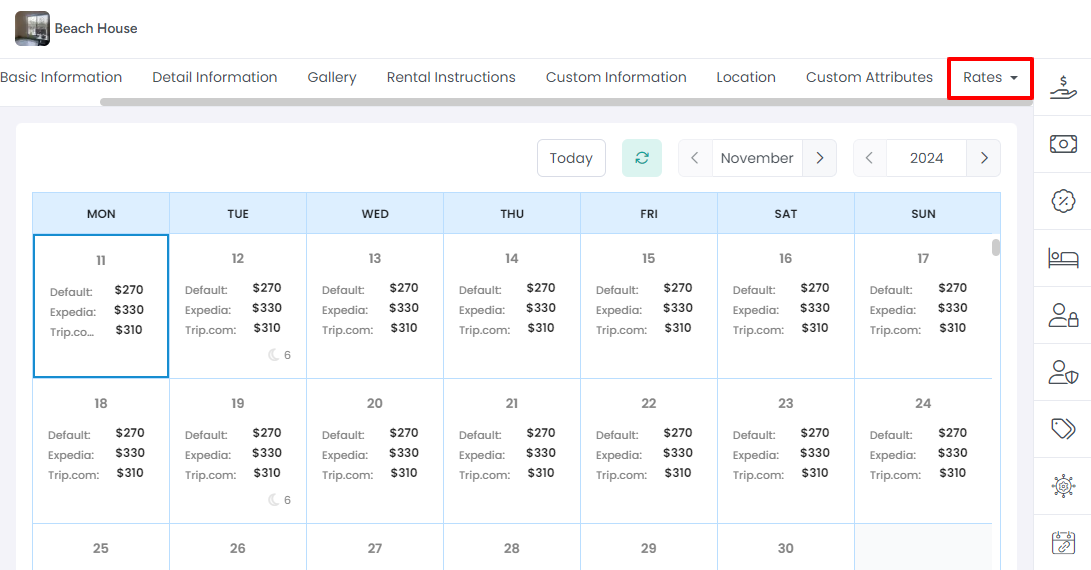
The Base Rate is defined on the rental rate settings overlay which can be opened by clicking on the rental in the rates calendar.

The rental Base Rate is pushed to all API channels - except Airbnb. For Airbnb, in practice, the channel requires that you set standard rates and push those primarily - we can send rates for up to 2 years from the present day.

Add a Base Rate

The base rate is a fallback rate, which is applied if there are no matching Standard rates for the booking dates. To add a base rate to your rental please do the following:

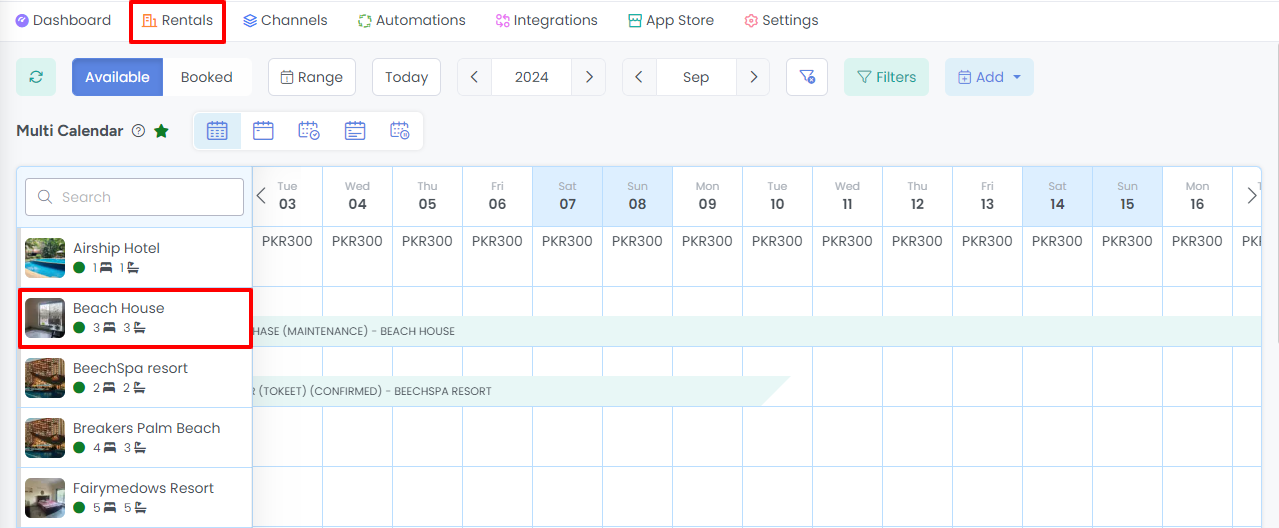
  1. First, click on the rental name to which you would like to add a base rate to.
  2. Scroll to the Rates tab

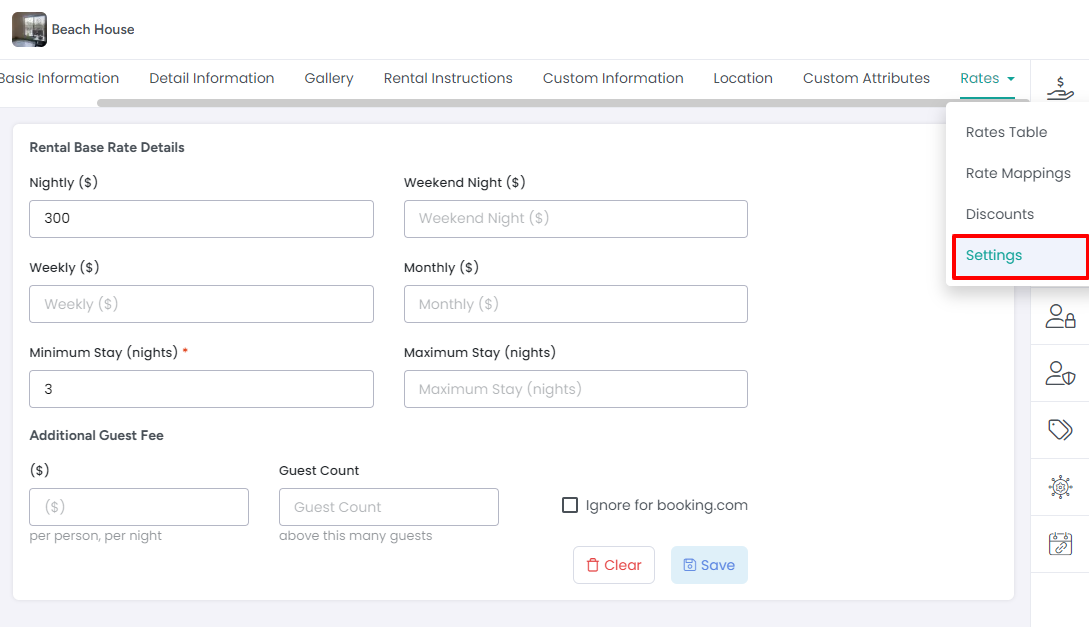
  3. Click on the Settings option.

  4. Complete the required information and click the Save button on the top right.

Rate Name: Descriptive name for the rate period

Minimum Stay:  Minimum amount of days guests are allowed to book 

Maximum Stay: Maximum amount of days that this rental can be booked

Nightly: Nightly rate

Weekend Night:  Saturday rate and Sunday rate (optional).

Weekly: Rate that is applied if a guest stays Monday through Sunday (optional).

Monthly: Rate that is applied when a guest stays for an entire month (optional).

Additional Guest Fee: Charge x amount for per person per night, above y guests

Guest count: Number of guests allowed for this rental before additional fees apply.

Note: Not every channel supports this structure. For example, if a channel does not support a weekend rate,  AdvanceCM will send the nightly rate.

After you define your base rate settings you will see this rate apply to channels when you have not created a Standard Rate to apply.

Airbnb

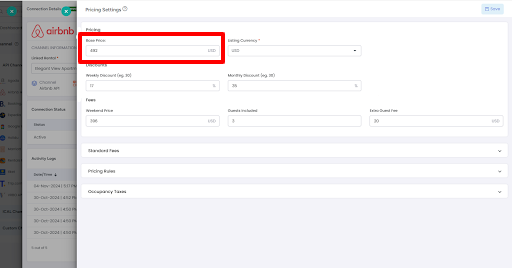
​The rental base rate found on the Rates Settings tab is not pushed to Airbnb, this must instead be updated in the Airbnb connection Price Settings.

Price Settings for Airbnb is found on the Connection Details page by going to Channels > Airbnb >Click on the connection > Actions > Price Settings: 
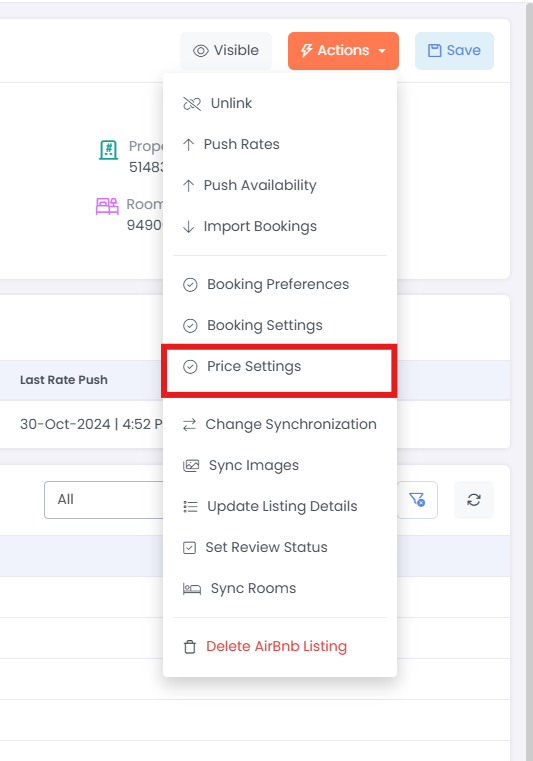
Price settings are specific to Airbnb listings. Once connected through the API connection, you'll realize that there are settings that are disabled on the channel. Well, they have allowed you to set this through those settings. Prior to connecting, you would've been able to set the base rate. 

The base is intended to be used as a fall-through rate, meaning that if a rate does not exist the base is used.

Given that each OTA has different rules and regulations regarding the scope of the base rate we advise to set a standard rate for all dates to avoid any ambiguity that could lead to rate discrepancies. 

As always, please contact us with questions any time.  We're happy to help.
How did we do? Thank you! We appreciate your feedback.
Website Login
Copyright © 2026 advance.cm. All Rights Reserved.
No documents match your search.
Searching...