The Facebook Messaging feature in AdvanceCM allows property managers and staff to communicate efficiently with guests directly within the platform. Whether you need to send booking confirmations or address guest inquiries, the messaging functionality in AdvanceCM provides a centralized, streamlined communication system.
This guide explains how to use the Facebook messaging feature in AdvanceCM to enhance your communication workflow and improve guest satisfaction.
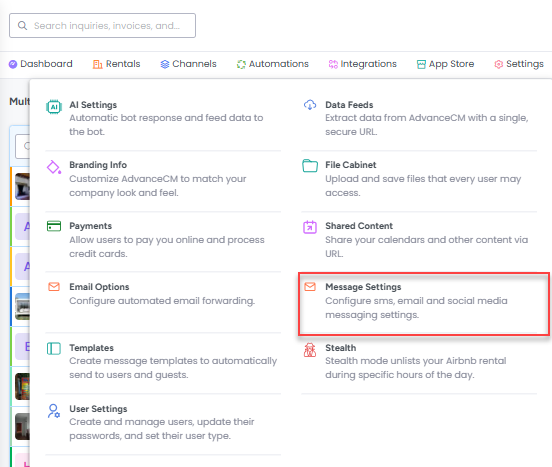
First, click on the Settings option in the top navigation bar, then on Message Settings as shown below.

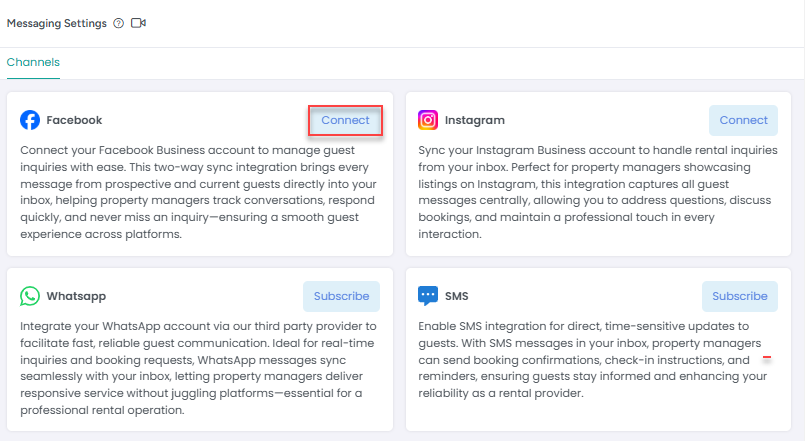
On the Message Settings overlay, locate the Facebook option and click on the Connect button next to it.

You can also connect from Inquires Inbox using Connect Now button as mentioned below

Clicking on Connect button will open popup as mentioned below with option to Connect Facebook Now

A pop up will be displayed asking you to confirm that your Facebook page is managed by a Business account - you will only be able to connect a Facebook business account.

If your account is a business account, then check the box to confirm and click Proceed.
There will now be a Facebook window where you will need to confirm which Facebook account to use.

Note: AdvanceCM users cannot initiate conversations with guests via Facebook within AdvanceCM. Guests need to initiate conversations from Facebook to AdvanceCM. Once an AdvanceCM user receives message from guests via Facebook, then he can use that platform to respond to guest.
How to use Facebook when sending a message?
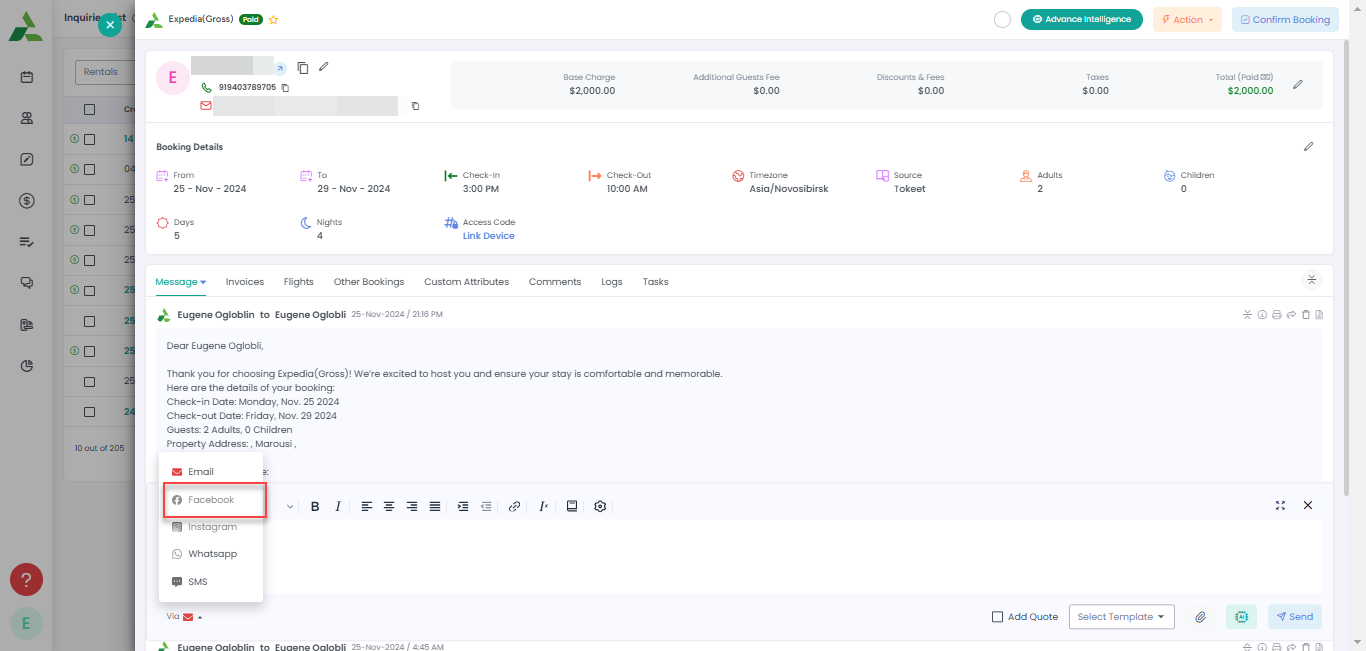
When you are responding to guests in the Inquiry Overlay or in the Inquiry Inbox, choose the Facebook option from the "Via" drop down as shown below.

You can see the Facebook icon as shown below if any message is sent or received via Facebook.

Guest creation while syncing Facebook messages into AdvanceCM
All the messages coming from Facebook messages section, will be synced inside AdvanceCM Messages tab. Guest will be created automatically for each new message coming inside Messages tab.
Guest: Guest name will be created on the basis of email address of sender.

Open any new message for which there is no inquiry available, you will see overlay with multiple tabs with all conversations with this guest in form of thread. You can convert Message to Inquiry by using Convert to Inquiry icon as mention in below screenshot.

How to disconnect Facebook connection?
Property manager can disconnect Facebook connection under Message Settings by clicking Disconnect button. Your old Facebook messages synced inside AdvanceCM will stay there.