Advance Help Center Advance Help Center
  • Getting Started
    • User Onboarding Quick Steps
  • AdvanceCM Mobile App
    • AdvanceCM Mobile App: Discounts Module
    • Onboarding flow in Mobile App
    • AdvanceCM Mobile App: Rentals Module
    • AdvanceCM Mobile App: Inquiries Module
    • AdvanceCM Mobile App: Inventories Module
    • AdvanceCM Mobile App: Extras Module
    • AdvanceCM Mobile App: Invoices Module
    • AdvanceCM Mobile App: Tasks Module
    • AdvanceCM Mobile App: Vendors Module
    • AdvanceCM Mobile App: Charges Module
    • AdvanceCM Mobile App: Incidents Module
    • AdvanceCM Mobile App: Expenses Module
    • AdvanceCM Mobile App: Calendars Module
    • AdvanceCM Mobile App: Dashboard
    • AdvanceCM Mobile App: Messages Module
    • AdvanceCM Mobile App: Guests Module
    • AdvanceCM Mobile App: Autopilot Module
  • Power Reporting
    • Power Reporting Dashboard/Control Center
    • Power Reporting: Average Booking Length
    • Power Reporting Revenue Report
    • Power Reporting: Nights Created
    • Power Reporting: Nights Filled Report
    • Power Reporting: Channel Nights
    • Power Reporting: Advance Booking Days
    • Power Reporting: Occupancy Rates Report
    • Power Reporting: Bookings Created
    • Power Reporting: Invoices
    • Power Reporting: Bookings Cancelled
    • Power Reporting: Average Price Per Night Report
    • Power Reporting: Recipients
    • Power Reporting: Channel Revenue Report
    • Power Reporting: Nights Cancelled
    • Power Reporting: Money Paid Over Time
    • Power Reporting: Commission Strategies
    • Power Reporting FAQs
    • Power Reporting: Nights Booked Ahead
    • Power Reporting: Average Booking Price Report
    • Power Reporting: Scheduled Statements
    • Power Reporting: Revenue Generated Report
    • Power Reporting: Statements
    • Power Reporting: Guests Hosted Report
    • Power Reporting: Payments
  • Reviews
    • AI Review Insights Overview
    • Reviews Overview
    • Reviews List View
    • Reviews Automation
    • Reviews to Write- Bookings List View
    • Reviews Dashboard
  • Integrations
    • Zapier Integration
      • AdvanceCM Integration with Zapier
    • Quickbooks integration with AdvanceCM
    • BetterSTR Integration with AdvanceCM
    • Connecting Holded.com to AdvanceCM
    • Get Clearing integration with AdvanceCM
    • Connecting HelloShift to AdvanceCM
    • Connecting Staido with AdvanceCM
    • Trustd Integration with AdvanceCM
    • Connecting ChargeAutomation to AdvanceCM
    • Connecting Check-in Scan to AdvanceCM
    • Connecting Chekin to AdvanceCM
    • How to create Zap using AdvanceCM Autopilot feature?
    • Connecting Touch Stay to AdvanceCM
    • Connecting KeyNinja to AdvanceCM
    • Connecting E-Visitor to AdvanceCM
    • Connecting Operto to AdvanceCM
    • Connecting Lula.Cleaning to AdvanceCM
    • Connecting Jervis Systems to AdvanceCM
    • Connecting Cleanster.com to AdvanceCM
    • Connecting MovingLake to AdvanceCM
    • Connecting Opiniion to AdvanceCM
    • Connecting Doinn to AdvanceCM
    • Connecting PriceLabs to AdvanceCM
    • Connecting Truvi to AdvanceCM
    • Connecting Turbosuite to AdvanceCM
    • Connecting Paraspot to AdvanceCM
    • Connecting Slack to AdvanceCM
    • Connecting Aipex to AdvanceCM
    • Integrations Overview
    • Connecting InsuraGuest to AdvanceCM
    • Connecting Minut to AdvanceCM
    • Connecting Duve to AdvanceCM
    • How do I connect to MailChimp?
    • Connecting Dropbox to AdvanceCM
    • Connecting Yada to AdvanceCM
    • Connecting Operto Teams to AdvanceCM
    • Connecting Wheelhouse to AdvanceCM
    • Connecting Boostly to AdvanceCM
    • How does the Mailchimp integration work?
    • Connecting Turno to AdvanceCM
    • Connecting Alertify to AdvanceCM
    • Connecting GuestFlow to AdvanceCM
    • Connecting StayFi to AdvanceCM
    • Connecting Safely to AdvanceCM
    • Connecting HKeeper to AdvanceCM
    • Connecting Beyond to AdvanceCM
  • User Settings & Logins
    • Account Info Preferences
    • User Type and Permissions Overview
    • User Settings Overview
    • Multi-Factor Authentication (MFA) Overview
    • Account Info Overview
    • Reset Password
    • Adding Payment Gateways using MFA
  • Rental Settings
    • Multi Unit rental relationship
      • Automatic Compaction for Multi-Unit Rentals
      • What is difference between Main Unit Rental and Sub Unit Rental?
      • Major Differences between Multi-Unit Rental and Parent Child Rental Relationship
      • How does the Multi-Unit feature works?
    • Managing Check-in and Check-out Restrictions
    • How does the Parent Child Rental feature works?
    • How Do I Add and Update Rentals?
    • Rentals Overview
    • How Do I Create a Custom AdvanceCM Email Address?
    • Linking Rentals Together
    • How Do I Add Fees to my Rental?
    • How do I delete rentals?
    • How Do I Change My Rental Currency?
  • Calendars
    • Import External Calendar
    • Standard Calendar
    • Multi Calendar Overview
    • Hold Events Overview
    • Planning Calendar
    • Agenda Calendar
  • Inquiries and Bookings
    • How to Send Quotes
    • How Do I Delete an Inquiry
    • Messages Feed
    • Inquiry Inbox Overview
    • Inquiry Overview
    • Guests Overview
  • Widgets
    • Add the Interstitial Widget to a Site
    • Inquiry Widget Advanced Configuration
    • Search Widget Advanced Configuration
    • Add the Search Widget to a Site
    • Add the Calendar Widget to a site
    • Add the Booking Widget to a Site
    • Booking Widget Advanced Configuration
    • Add the Inquiry Widget to a site
  • Subscription & Billing
    • Billing Info Overview
  • Websites
    • Guest Portal Overview
    • Custom Domains With AdvanceCM Websites
    • Booking Engines
    • Custom Domains With AdvanceCM Guest Portal
    • Creating a website with Website Builder
    • Securing your Custom Domains
    • Website Analytics and Tracking
  • Operations
    • Tasks
      • My Tasks Overview
      • Tasks List View Overview
      • Tasks Calendar
    • Vendor Web Application
    • Vendor List View
    • Inventories Overview
    • Incidents Overview
  • FAQs
    • Multi-Unit Rentals Relationship FAQs
    • Parent- Child Rentals Relationship FAQs
    • Reviews FAQs
    • Advance Intelligence FAQs
    • General FAQs
    • Channels FAQs
    • Smart Devices FAQs
    • MFA FAQs
    • Automations/Autopilots FAQs
    • Messaging Apps FAQs
  • Autopilots
    • Tasks Autopilot Wizard Overview
    • Guest Autopilot Wizard Overview
    • Extras Autopilot Wizard Overview
    • Reviews Autopilot Wizard Overview
    • Rates Autopilot Wizard Overview
    • Messages Autopilot Wizard Overview
    • Inventories Autopilot Wizard
    • Expenses Autopilot Wizard Overview
    • Locks Autopilot Wizard Overview
    • Charges Autopilot Wizard Overview
    • Invoices Autopilot Wizard Overview
    • Autopilot Wizard Overview
    • Bookings Autopilot Wizard Overview
    • Documents Autopilot Wizard Overview
    • Credit Card Autopilot Wizard Overview
    • Security Deposit.Autopilot Wizard Overview
    • Incidents Autopilot Wizard Overview
  • Rate Management
    • My Rates are Too High on Booking.com
    • What is a Rate Category?
    • My Rates are Too Low on Booking.com
    • Pushing Rates to API Channels
    • How to Set Up Distinct Rates for Channels
    • How to Set Day-Specific Pricing
    • Changing the Max Guests value on Booking.com
    • What is a Dynamic Rate?
    • Changing the additional guest fee on Booking.com
    • What is a Standard Rate?
    • Rates Overview
    • Rate Determination Algorithm
    • Troubleshooting Rates
    • What is a Base Rate?
  • Settings
    • Payment Gateways
      • How to connect with Peach Payment gateway
      • How to connect with Paypal Advance?
      • Booking.com and Expedia payment details
      • How to connect with Stripe Payment gateway?
    • Data Feeds
    • Web onboarding Flow for AdvanceCM users
    • Payments Overview
    • Data Feeds Overview
    • Payment Rules Overview
    • File Cabinets Overview
    • Email Options
    • Branding Info Overview
    • Shared Content Overview
    • Stealth Overview
    • AdvanceCM Data Dictionary
    • Custom Codes Overview
    • Templates Overview
  • Smart Devices
    • Smart Devices Setup
    • Smart Devices General Settings
    • Smart Devices Overview
  • Channel Manager
    • iCal Connections
      • Connecting iCal Channels
      • Export your AdvanceCM calendar to Holidaylettings
      • Connecting to Flipkey/Tripadvisor with AdvanceCM
      • What if my channel is not listed in AdvanceCM?
      • Connecting to Homeaway/VRBO with AdvanceCM
    • Airbnb
      • Airbnb API FAQ
      • Creating an AirBnB Password
      • Connecting to Airbnb API
      • Requirements for an Airbnb Rental
      • Creating Listings in Airbnb
      • How to Fix or Refresh Airbnb API connections
      • Airbnb 2-way API Sync
      • How do I refresh my Airbnb property list?
      • Airbnb Quality Dashboard
      • How to apply 20% discount promotions in Airbnb Bookings
      • How to Rank Higher on AirBnB
      • Airbnb Opportunities, Reviews & Notifications
      • Airbnb Price Settings
      • Airbnb Booking Settings
      • Airbnb Host Alteration
      • Airbnb Guest Alteration
      • Connecting to Airbnb via iCal
      • How Do I Disconnect my Airbnb Listing or Account from AdvanceCM?
    • Agoda
      • Connecting Agoda with AdvanceCM
    • Expedia
      • How to connect Expedia Messaging with AdvanceCM
      • Connecting Expedia with AdvanceCM
    • Rentals United
      • Connecting Rentals United to AdvanceCM
      • Rentals United Connection and Fees Guidelines
    • Tiket
      • Connecting Tiket to AdvanceCM
    • Google Vacation Rentals
      • Google Vacation Rentals FAQs
      • Connecting to Google's Vacation Rental platform
      • Google Vacation Homes - Fixing Rental Errors
    • Booking.com
      • How to edit listing for Booking.com inside ACM
      • How to add listing for Booking.com inside ACM
      • How to fix Errors for Booking.com Listing inside ACM
      • Connect to AdvanceCM via the Booking.com Extranet
      • Pushing rates to Booking.com
      • Booking.com Rates and Additional Guest Pricing
      • Sending Booking.com messages with AdvanceCM
      • AdvanceCM and Booking.com Best Practices
    • HVMI
      • Marriot Discounts
      • How Marriott handles Booking Fees
      • Connecting HVMI to AdvanceCM
      • HVMI Requirements and FAQ
    • VRBO
      • Connecting Vrbo to AdvanceCM
      • Activating AdvanceCM Rentals on VRBO
      • Setting Rates and Fees in AdvanceCM for Vrbo
      • VRBO Bed Syncing
      • VRBO FAQs
    • Trip.com
      • Connecting Trip.com to AdvanceCM
    • Holidu
      • Holidu API Requirements and FAQ
      • Connecting Holidu to AdvanceCM
    • How to connect Hopper Channel with AdvanceCM?
    • Channels Overview
    • Adding Custom Channels
    • Adding Commissions for Channels
  • Documents
    • Document Templates for Forms, Printouts, and Signatures
    • How to create Documents?
    • Documents Preferences
  • Finances
    • Expenses
      • Importing Expenses
      • Expenses Overview
      • Expense Settings
    • Invoices
      • Invoice Overview
      • Invoice Templates
    • How to setup Security Deposits?
    • Charges Overview
    • Extras Overview
    • Booking Formula Overview
    • Discounts Overview
  • Messaging Apps
    • How to add Custom Phone Number?
    • Messaging Apps Logs Overview
    • AdvanceCM Unified Inbox
    • Messaging App- Gmail
    • Messaging App - WhatsApp
    • Messaging App- SMS
    • Messaging App - Facebook
    • Messaging App -Instagram
  • Advance Intelligence
    • AI Scheduling Feature
    • AI based Rental Image Enhancer
    • AI generated Incidents & Task Approval Workflow
    • AI based Search
    • AI driven Actions
    • Activating Advance Intelligence
    • Advance Intelligence Rental Information
    • Advance Intelligence Credit Recharge
    • Advance Intelligence Ignore List
    • Advance Intelligence Settings
    • Advance Intelligence Introduction & Benefits
    • Advance Intelligence Knowledgebase
  • Overview
    • AdvanceCM Multi Language Support
    • Push Rates & Availability
    • Dashboard Overview
    • Inventory Search Overview
    • Cost Estimator Overview
  • Automations
    • Rates Automation
      • LOS Discount Automation
      • Group Rates
      • Gap Night Automation
      • Last Minute Automations
      • Channel Adjustments
      • Discount Codes Automation Overview
      • Rates Automation Overview
      • Min Night Stay Automation
    • Expense Automation
    • Documents Automation
    • Task Automation
    • Time Based Triggers
    • Invoice Automations
    • Booking Automation Overview
    • Automations Overview
    • Message Automation Overview
Channel Manager / Booking.com / How to fix Errors for Booking.com Listing inside ACM /
Website Login

How to fix Errors for Booking.com Listing inside ACM

Troubleshooting Rate/Availability Push Errors:

If you encounter errors when trying to open your new Booking.com listing, this is likely due to missing information.

For example, if you open your connection on the Channels page and the status on your Connection Details page shows Auto Closed (Availability), and you select Open Property, to change the status to Open/ Bookable you may see an error on the right side or in the connection's Activity Log.
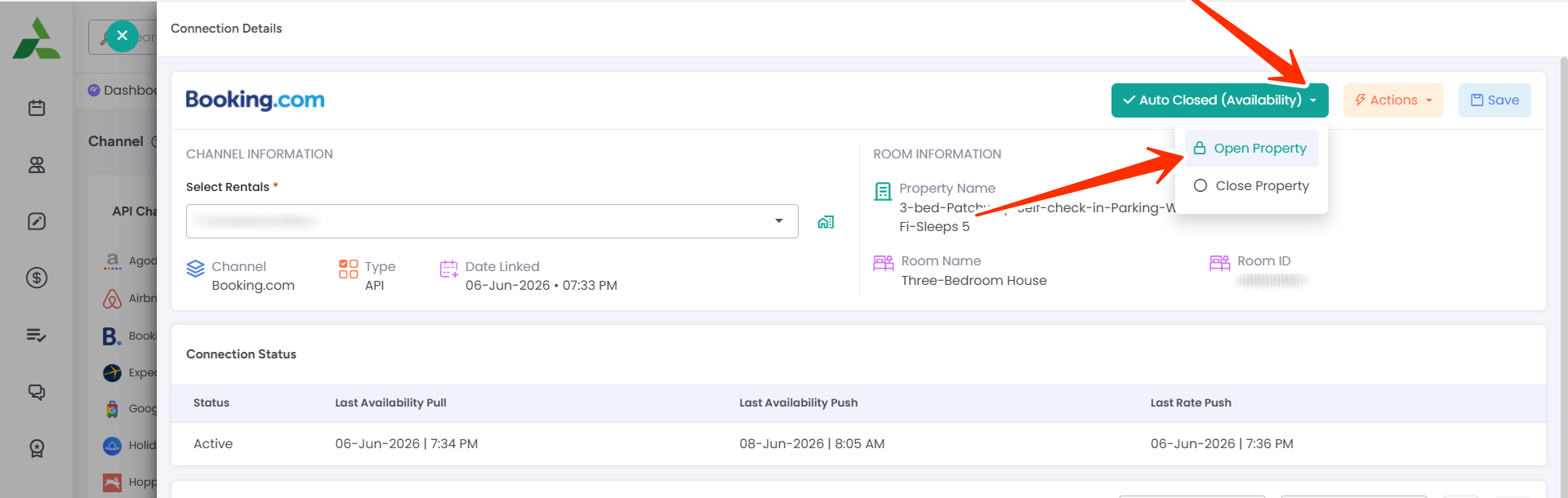
You may also see variations of this message, such as Closed (Requested by Hotel). The same solution steps will work.

Here is an example of a popup on the top right corner showing one of the common errors you may encounter.

You will will need to check your listing summary to see the full list of errors for your listing. Click the Actions button > View Listing Summary.
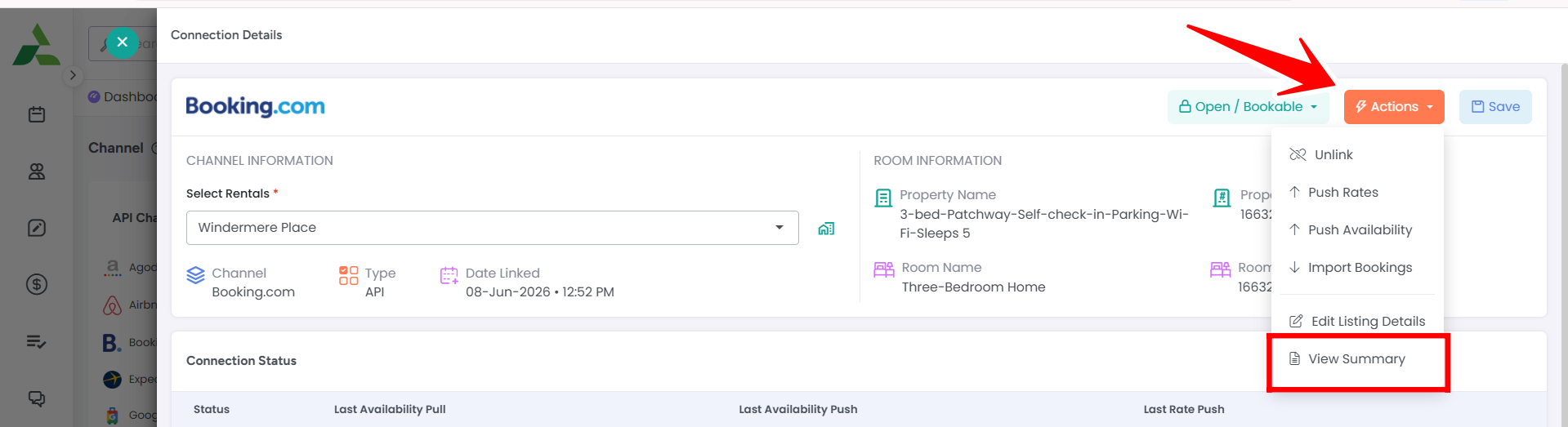
A window will open similar to this. A numbered list of errors will show.
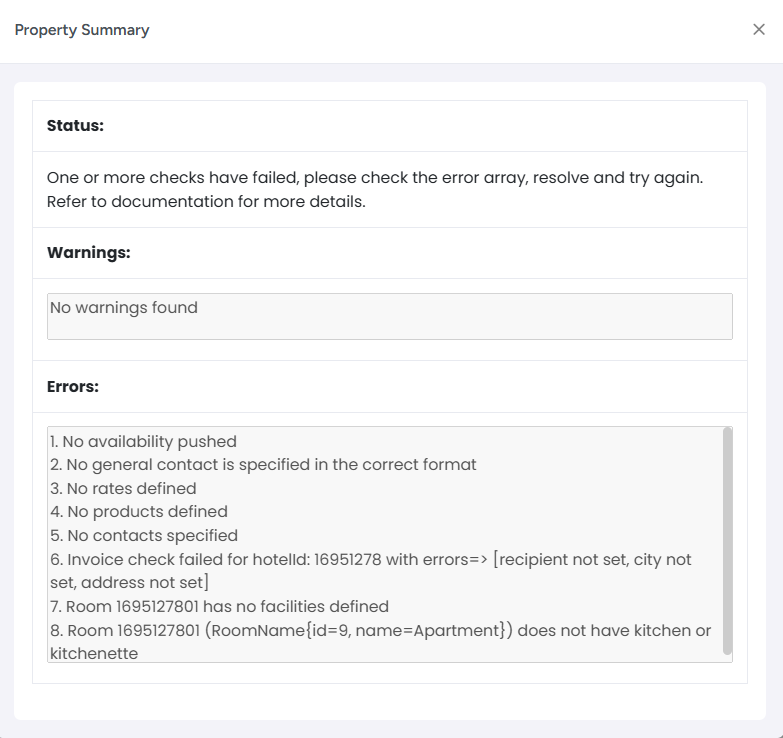
If you see one or more of these errors, please refer to the following Steps to Resolve Errors.

To fix these errors you will first need to go to Actions > Edit Listing Details in the connection details.
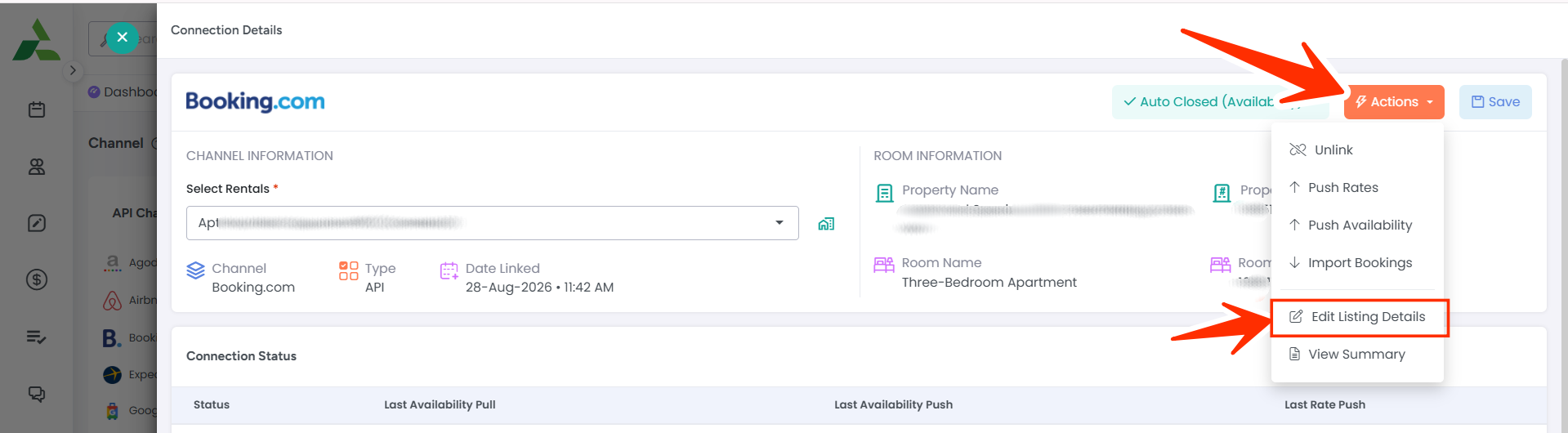
  1. No availability pushed
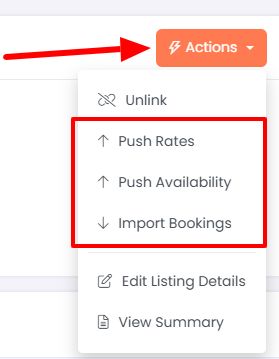
    Go to your Rental and ensure that a Booking.com Rate Mapping has been added with the Auto Sync is enabled. Push Rates and Push Availability once more from the Actions menu of the connection details. See the following help article link on How to Add your Rate Mappings.

    Import Bookings, Push Availability and Push Rates

    Before the connection can be complete, you must first perform these steps:
  2. No general contact is specified in the correct format
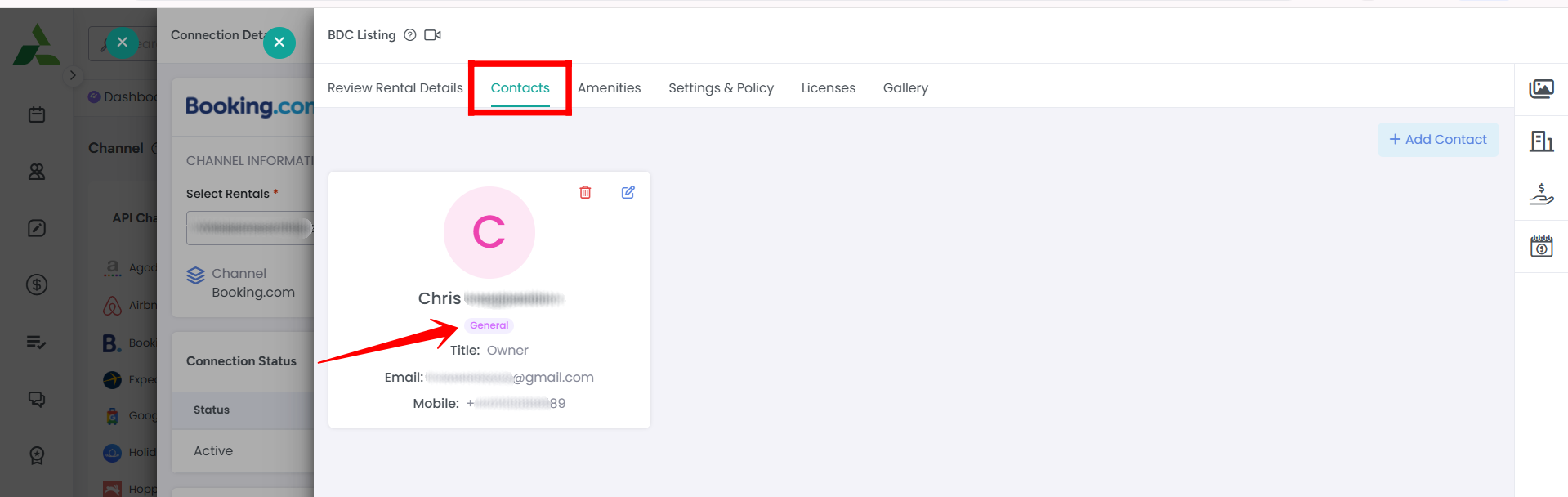
    Check your Contact information under Contacts, which is the second tab on the Edit Listing details overlay.

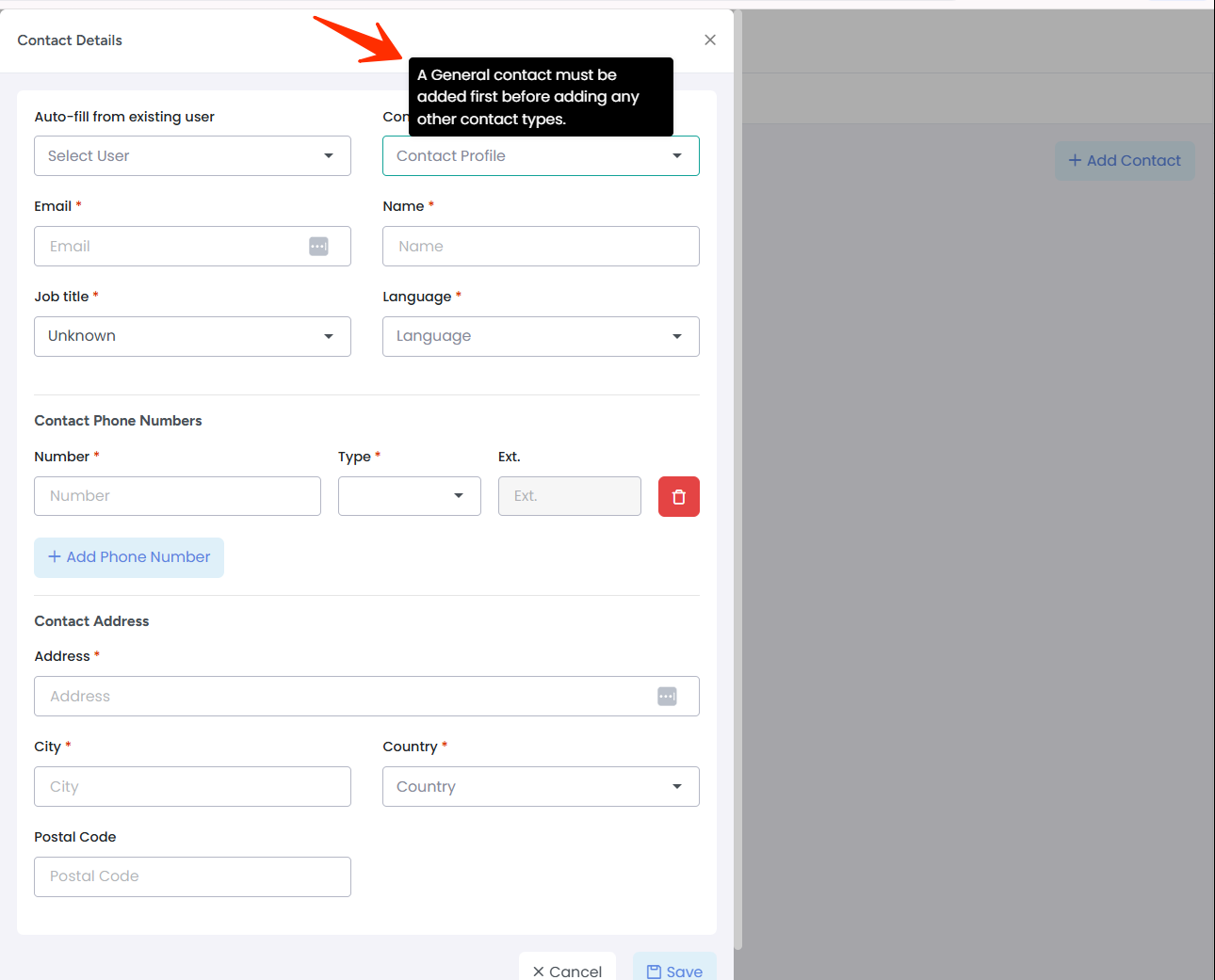
    Click on the Add Contacts button to add a contact and these details will be saved directly to Booking.com platform, not in AdvanceCM.
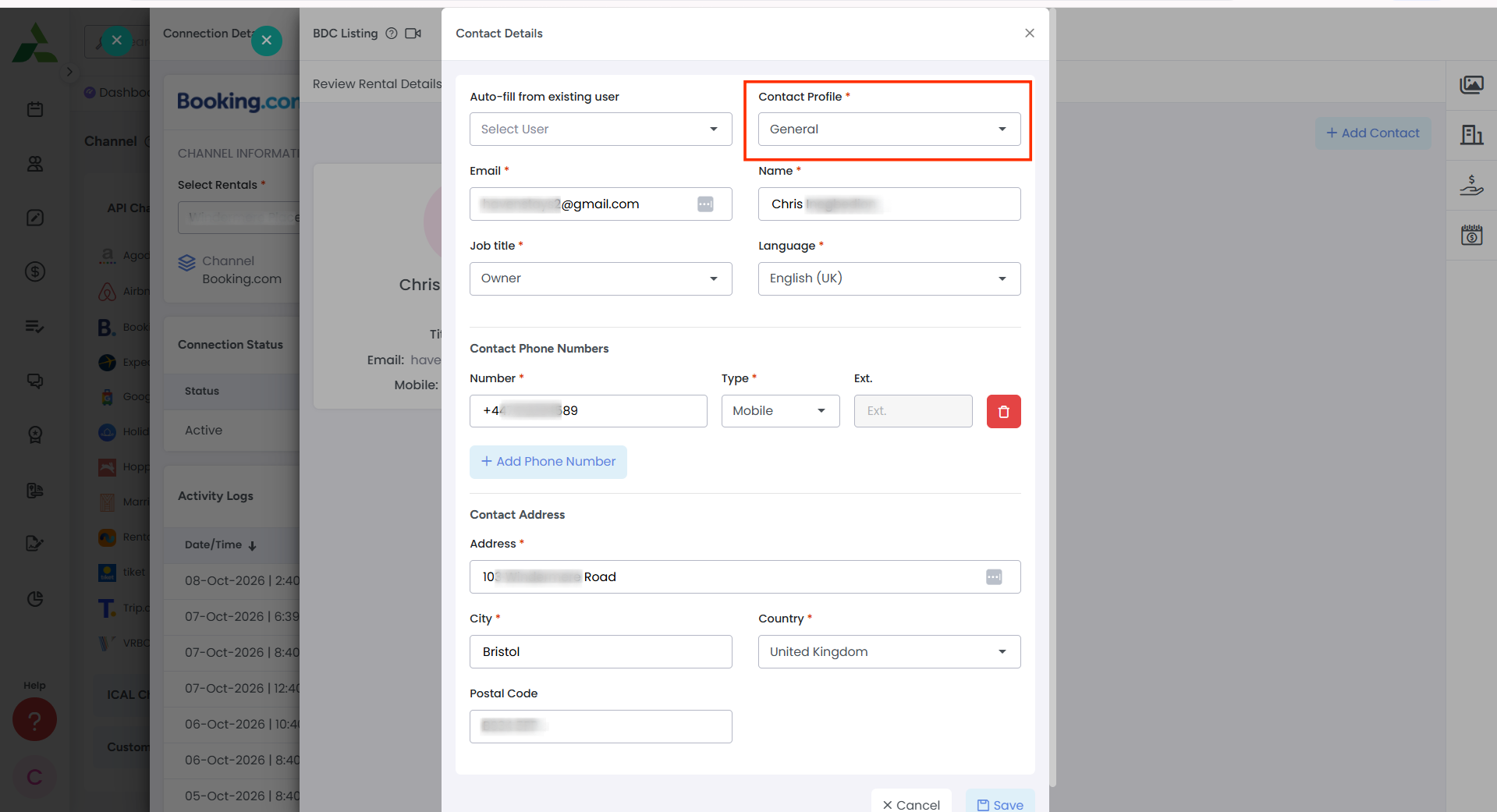
    If this is your first contact, make sure to add a General contact. This is required before adding other contacts.
  3. No rates defined
    Ensure that you have defined Rate plans for your listing and that they are synchronized with Booking.com.

    Go to Rates, on the right-side menu. You can add rates using the Add Rate button and rates will be created. By default, the rate will be Active and you can disable it using the Active toggle. Created rates will be synced to Booking.com

    These rates will be used while creating Products and correspond to Booking.com Rate Plans. Rates and Products both will be visible under the Rates module on Booking.com platform.
    Remember AdvanceCM manages the Standard Rate Plan on Booking.com.
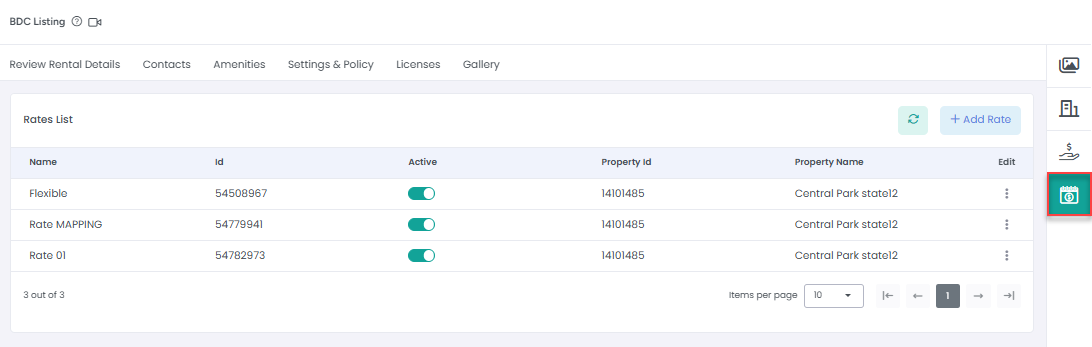
    Booking.com's Rates section will look like this after data syncing from AdvanceCM.
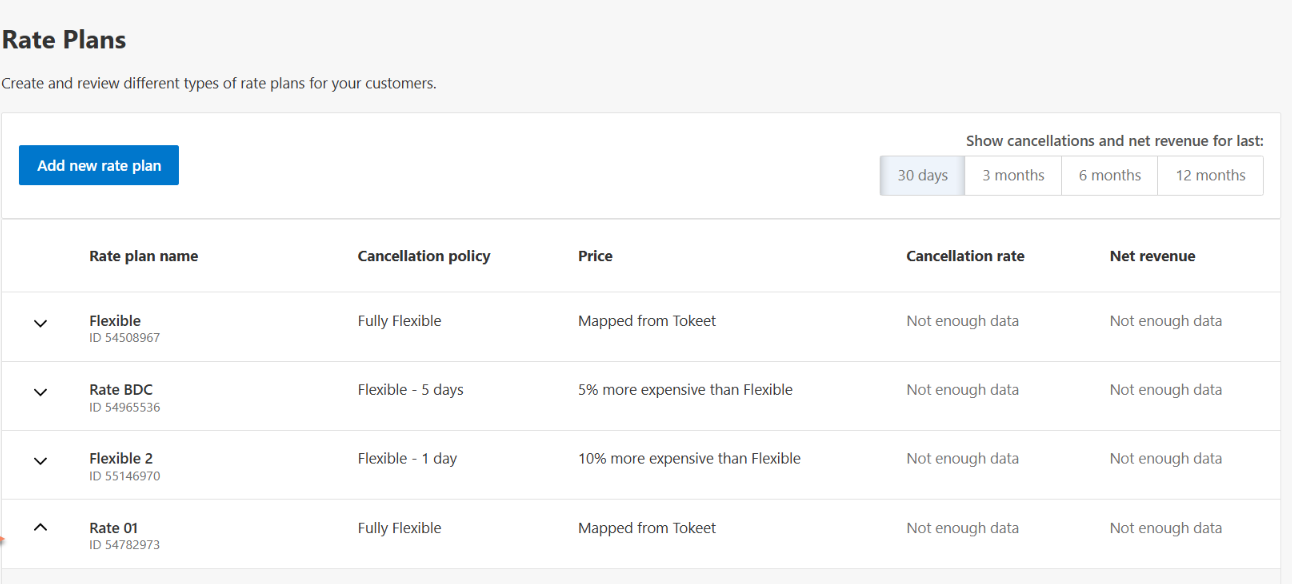
  4. No products defined
    Typically indicates that there are no Room Rates or Products set up for your property. Verify that the property has at least one Room Rate or Product.

    Go to Products, on the right-side menu. Products can be added using the Add Product Button. You have to choose a Room and Rate while creating a Product.

    A Rate can be added with 1 Room only.
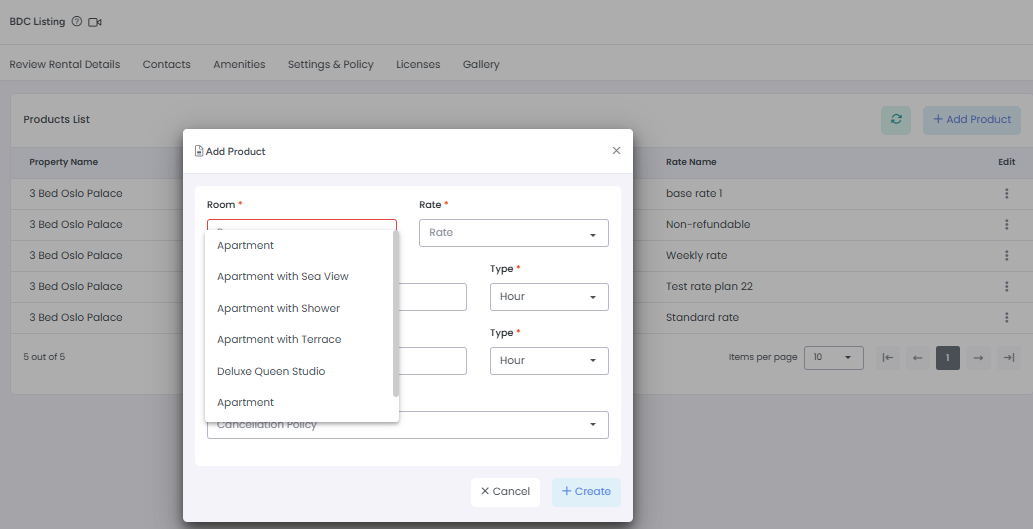
    Created products will be synced to the Rates module inside Booking.com platform.
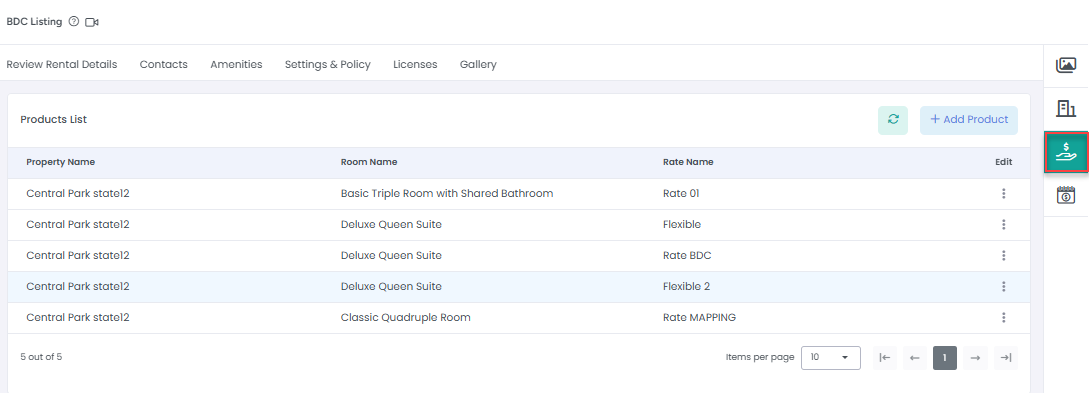
    In the Product section you can select the Room and map it with the Rate created in Rates tab (Mentioned above). Only then this will be shown on the Booking.com Extranet.
  5. No contacts specified
    Check your Contact information under Contacts and ensure there is at least one contact and all required fields are filled in.
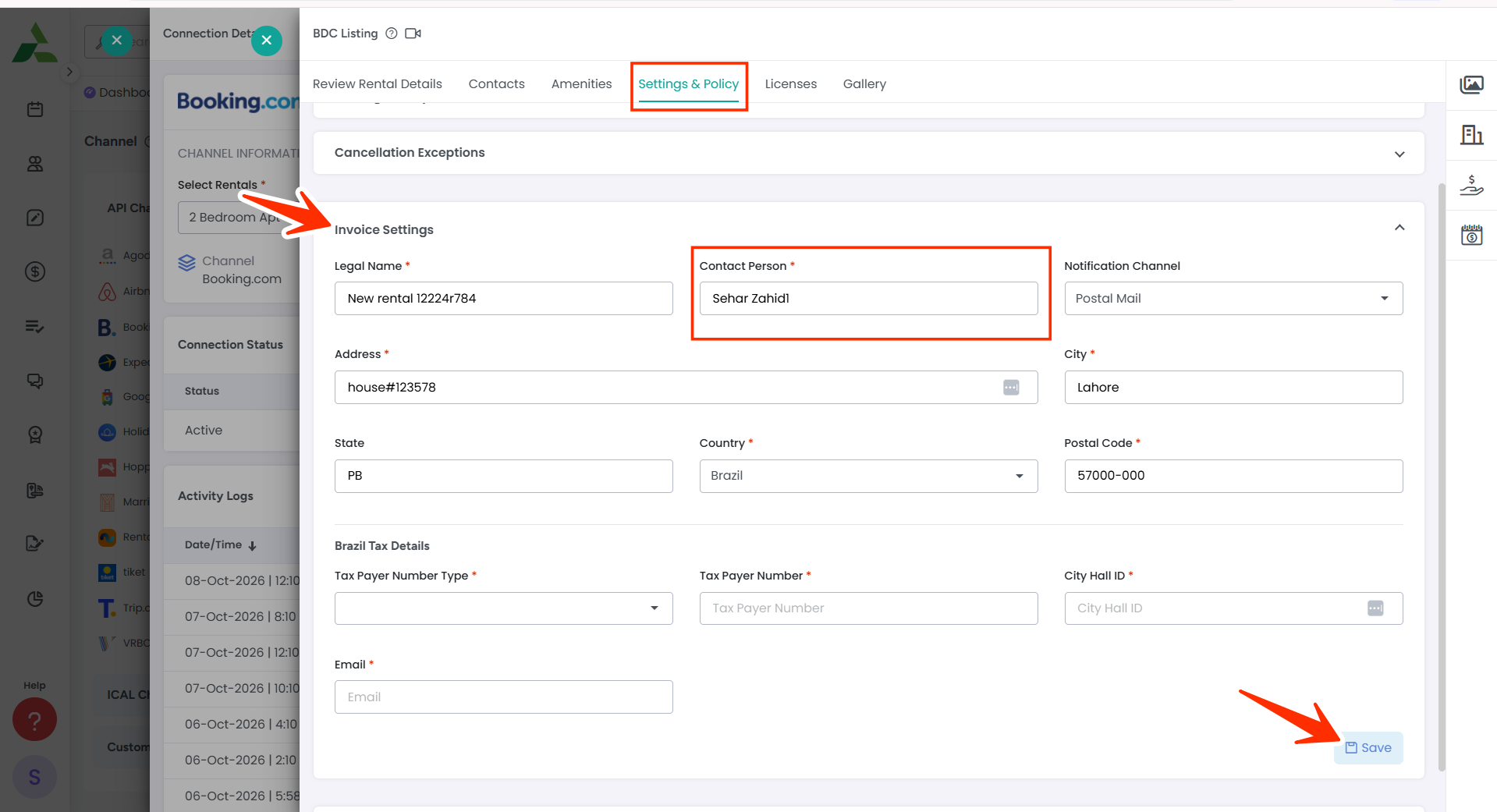
  6. Invoice check failed for hotelld: 12345678 with errors=> [recipient not set, city not set, address not set]
    Go to Settings & Policy then scroll down to the Invoice Settings.

    Fill in the Contact Person. This can be a name or company if you so desire. Click Save.
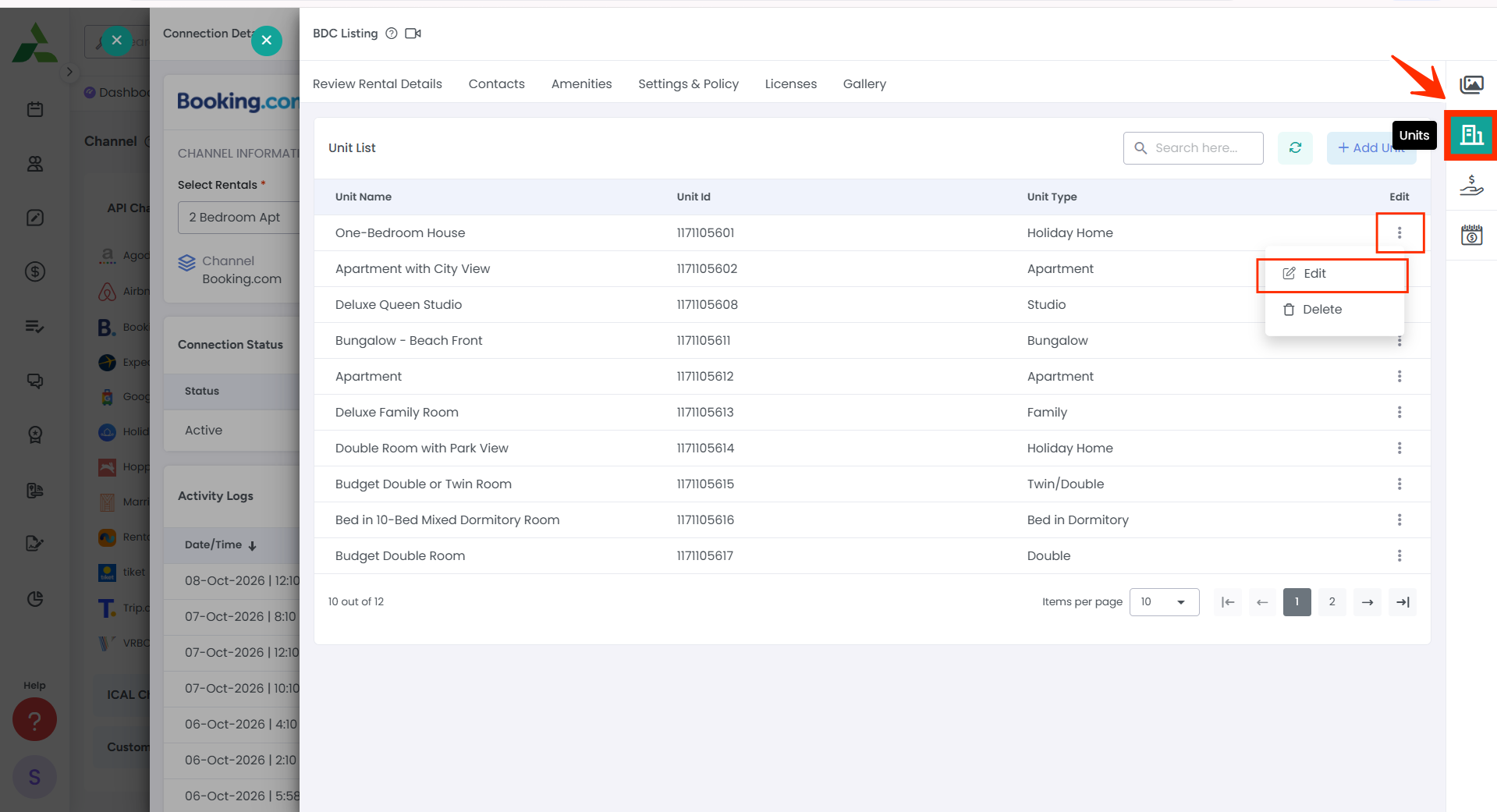
  7. Room 1234567801 has no facilities defined
    Make sure that all property details, including facilities, are correct and up-to-date. Access the Units menu on the right side menu.
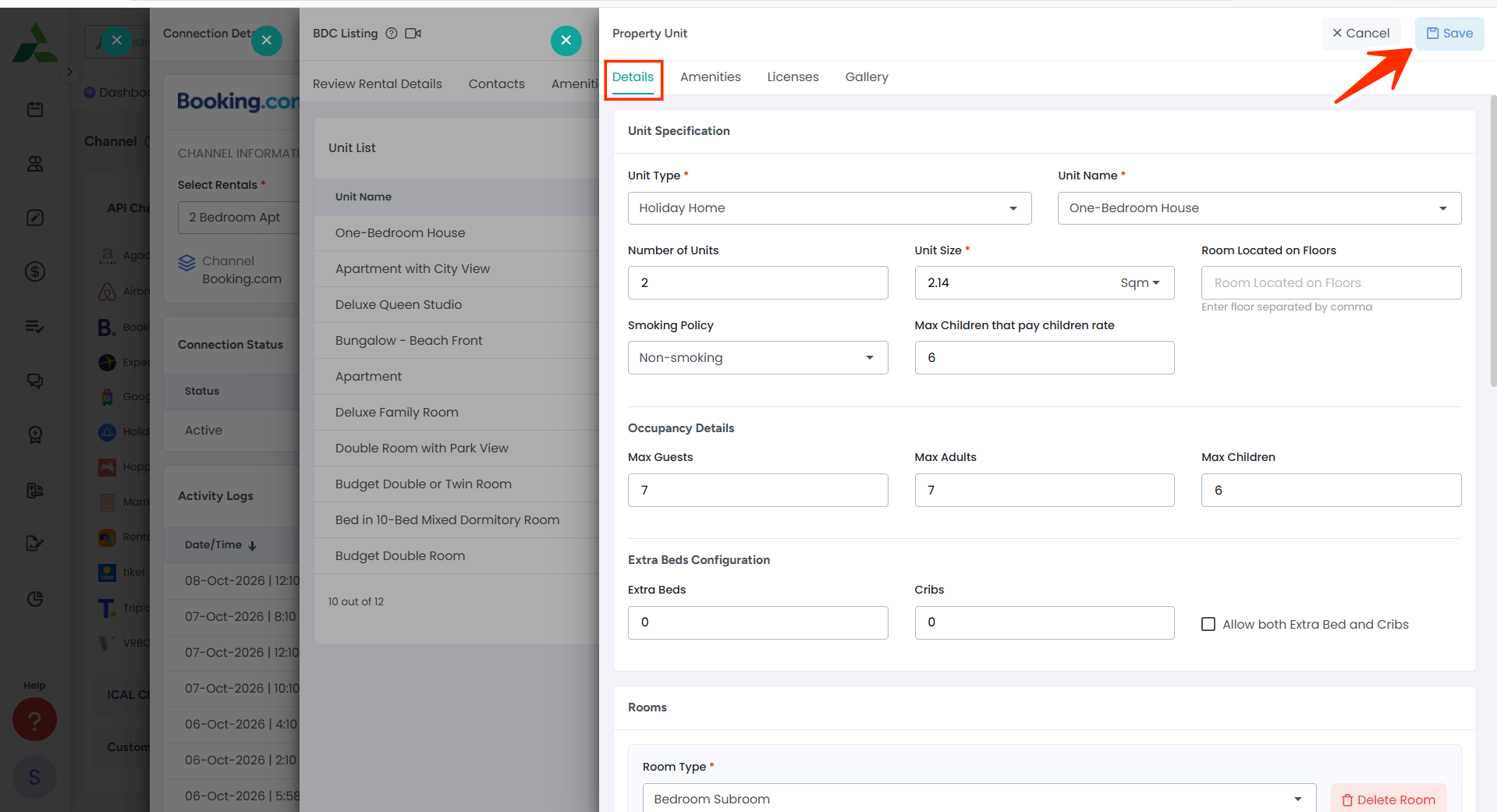
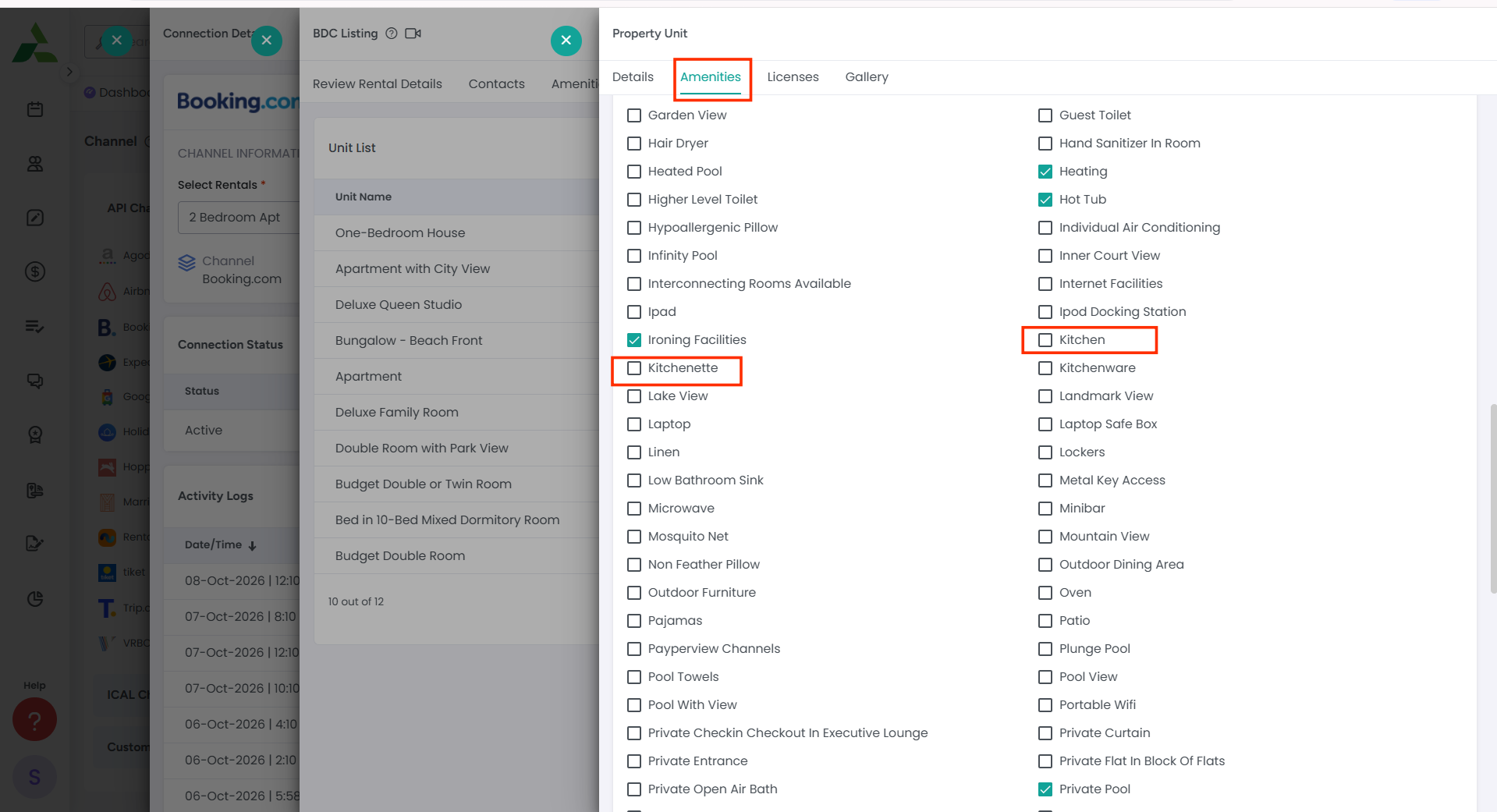
  8. Room 1234567801 (RoomName{id=9, name=Apartment}) does not have kitchen or Kitchenette

    Edit the Unit and ensure that either kitchen or Kitchenette is selected under the Amenities of the unit.
By following these steps, you should be able to resolve each issue.

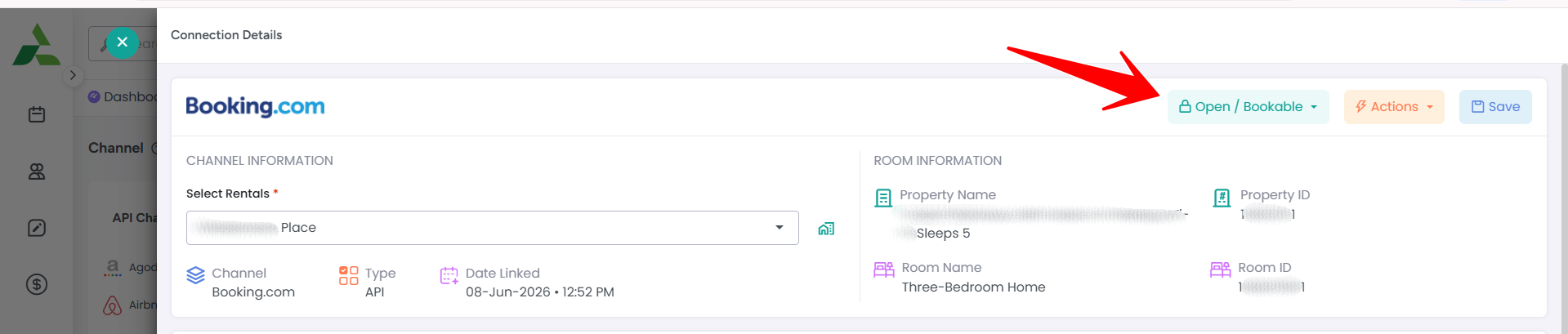
Once you have completed all of the information for your listing, the final step will be to try to open your property from the main "Connection Details" page. Click the "Open Property" option as shown in the next screenshot.

Providing all the information is present, the status will change to Open / Bookable on the connection details page and also on Booking.com.
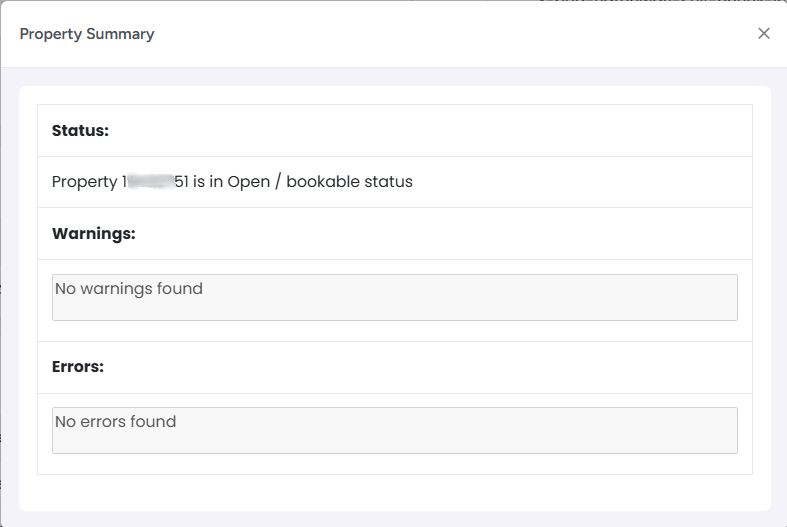
Your View Summary will also show no errors.
In a few cases with new listings, you may see an status XML: Being Built indicating that Booking.com is working on finalizing the listing. Please note that we have no control over how long this step takes.

Other Errors

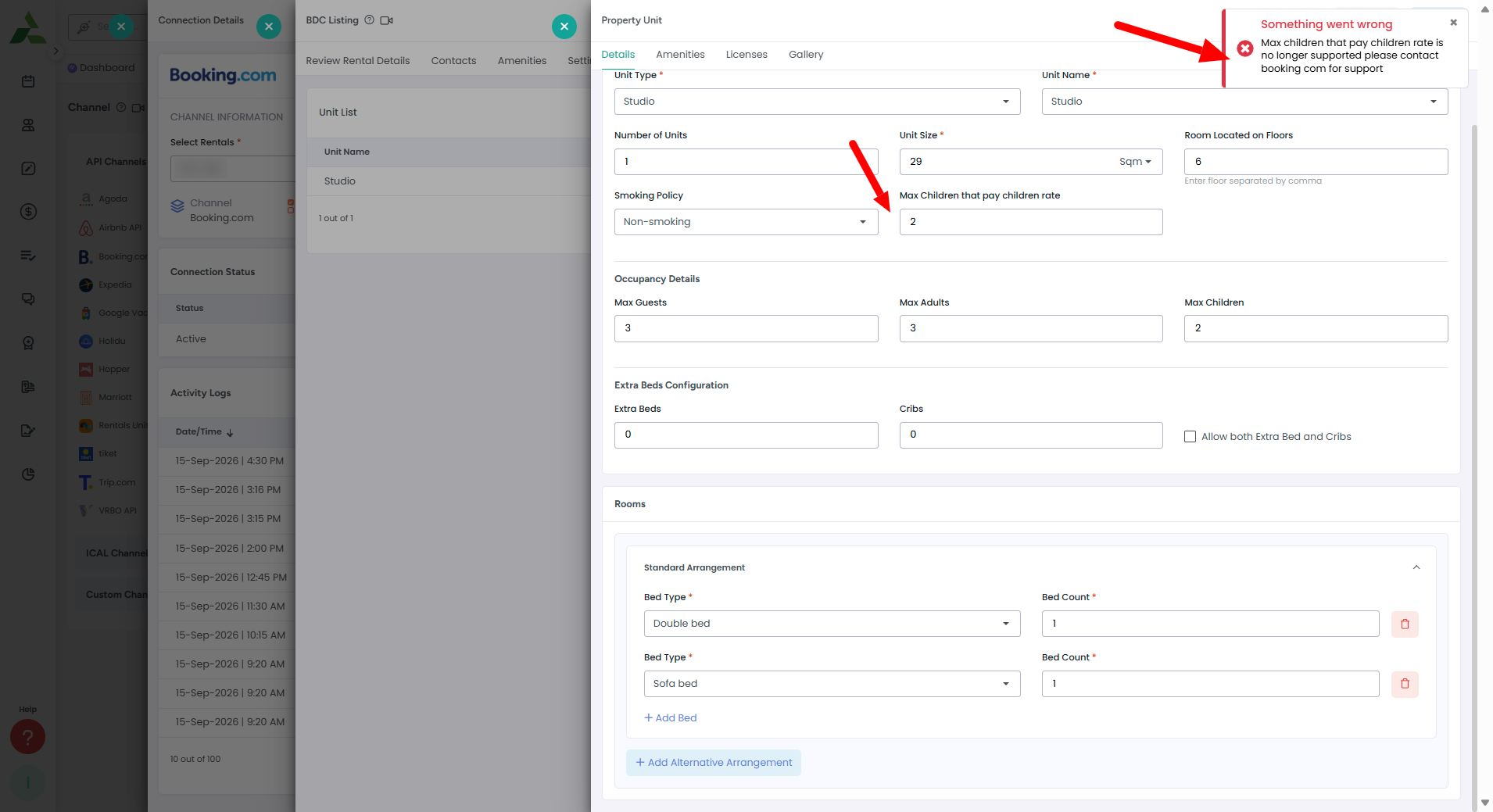
Some users have reported the following error which prevents them from saving changes to the listing:
Max Children that pay children rate is no longer supported.

At this time, this can be only be updated directly on Booking.com, so you will need to reach out to their support. https://partner.booking.com/en-us/help/rates-availability/rates-special-offers/setting-child-rates
As always, please contact us with questions any time.  We're happy to help.
← Previous How to add listing for Booking.com inside ACM In Booking.com Next → Connect to AdvanceCM via the Booking.com Extranet In Booking.com

Related articles

  • How to edit listing for Booking.com inside ACM
  • Pushing rates to Booking.com
  • Booking.com Rates and Additional Guest Pricing
How did we do? Thank you! We appreciate your feedback.
Website Login
Copyright © 2026 advance.cm. All Rights Reserved.
No documents match your search.
Searching...